
Devices
Windows 10 support ends in October: what Cayman businesses need to do
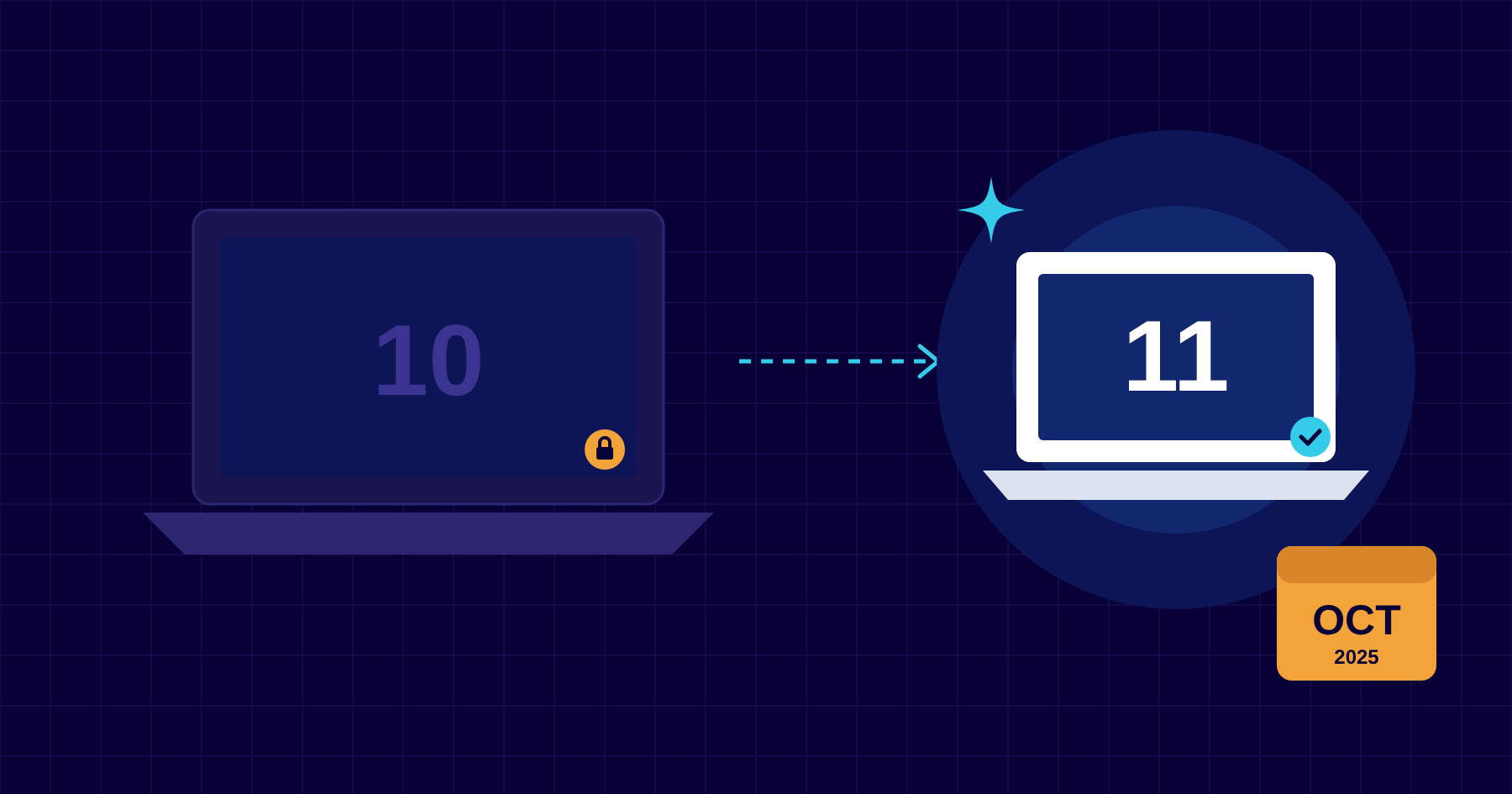
After 14 October 2025, Windows 10 PCs stop getting security updates. Here’s how to find out which of your computers are affected, what your options are, and how to plan replacements without a last-minute rush.
By the CNS team · · 4 min read
Key takeaways
- Windows 10 reaches end of support on 14 October 2025. After that, no more security fixes.
- Many PCs bought before 2018 can’t run Windows 11 because of its processor and security chip requirements.
- Extended Security Updates can buy time, but they cost extra per device and the price rises each year.
- Shipping to Cayman adds weeks, so order replacements early and avoid peak hurricane season.
What’s changing
Microsoft will stop supporting Windows 10 on 14 October 2025. Your computers will keep working, but they’ll no longer receive security updates, bug fixes or technical support. Any new vulnerability found after that date will stay open on every Windows 10 machine.
Running unsupported software is one of the first things attackers look for, and one of the first things cyber insurers and regulators ask about. For CIMA-regulated firms and anyone handling personal data, an unsupported operating system is hard to justify.
Which of your PCs can upgrade?
Upgrading from Windows 10 to Windows 11 is free, but only on hardware that meets Microsoft’s requirements. The main ones are:
- A supported processor, generally Intel 8th generation or AMD Ryzen 2000 series and newer.
- TPM 2.0, a security chip that most business PCs from the last few years include.
- UEFI firmware with Secure Boot, at least 4 GB of memory and 64 GB of storage.
The PC Health Check app will tell you if a single machine is eligible. If we manage your IT, we can produce a report for every device in one go.
Your options
- Upgrade eligible PCs to Windows 11. Free, and usually done in an hour or two per machine, out of hours if you prefer.
- Replace PCs that can’t upgrade. For machines that are five or more years old, this is usually the better investment anyway.
- Buy Extended Security Updates (ESU). Businesses can pay per device for up to three more years of security fixes. It’s a stopgap, and the price doubles each year.
- Move to a cloud PC. Windows 365 runs Windows 11 in the cloud and can be reached from older hardware while you plan replacements.
Plan it properly
- Start with an inventory of every computer, its age and whether it can upgrade.
- Budget now for replacements, or spread the cost with a managed hardware plan.
- Order early. Shipping and customs can add several weeks, and stock tightens as the deadline approaches.
- Avoid the peak of hurricane season for big rollouts where you can.
- Test your key software, especially specialist accounting, legal or practice-management applications, on Windows 11 before you switch.
- Use the opportunity to set new machines up properly, with encryption, device management and automatic enrolment.
How CNS can help
We’ll check every device, tell you which can upgrade and which need replacing, and handle the upgrades and new PC setup, much of it outside business hours. With managed hardware, you get business-grade computers for a fixed monthly fee, replaced every 36 months, so you’re never caught out by an end-of-support date again.
More insights


Questions about your own setup?
Talk to a Cayman IT expert. No obligation, no jargon.